Customer Experience
Voki was designed to give the client the simplest and most seamless experience possible. No account creation, no app installation, and no configuration is needed. The entire service takes place directly in the browser.
Access via link
The client receives a link to access the service, which can be sent via email, SMS, WhatsApp, or automatically generated by the widget on your website. The link format is:
https://voki.avanter.com.br/call/{token}Upon clicking the link, the browser automatically opens the pre-service page.
Automatic language detection
The client interface automatically detects the browser's language and displays all content in the corresponding language: Portuguese (BR), English (US), Spanish, or French. If the browser language is not supported, the default is Portuguese (BR).
Pre-service form
Before entering the queue, the client fills out a quick form with their information:
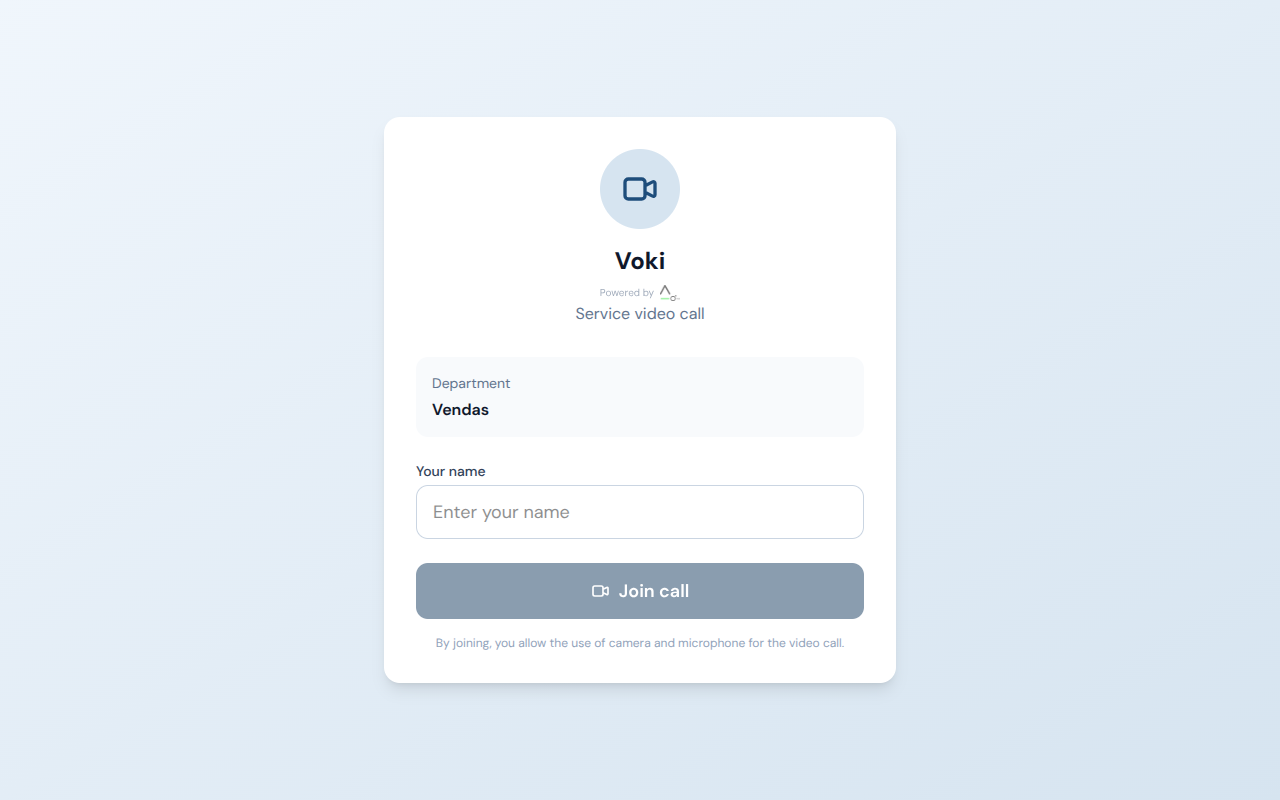
| Field | Description | Required |
|---|---|---|
| Name | Client's full name | Yes |
| Email for contact and identification | Yes | |
| Phone | Phone number for contact | No |
| Subject/Reason | Brief description of the reason for the service | No |
After filling in the data, the client clicks "Join queue" and is directed to the waiting room.
For managers
The data filled in by the client is available in the integrated CRM and in service reports. This allows your team to track each client's history over time.
Waiting room
While waiting for service, the client sees a waiting screen with the following information:
| Element | Description |
|---|---|
| Queue position | Number indicating how many people are ahead |
| Estimated time | Estimate of how long until they are served |
| Company logo | Visual identity of the department that will handle the service |
| Custom message | Text configured by the manager (e.g., "Please wait, you will be served shortly") |
What the client can do while waiting
- Test camera and microphone — Check that devices are working properly before the call
- Enable background blur — Blur the video background for greater privacy
- Leave the queue — Abandon the wait at any time by clicking the "Leave" button
Browser permissions
The first time the client accesses the service, the browser will request permission to use the camera and microphone. It is necessary to allow access for the video call to work properly.
Video call
When an attendant accepts the call, the video room starts automatically. The client does not need to take any additional action — the connection is established instantly.
What appears on screen
| Element | Description |
|---|---|
| Attendant's video | Attendant's image on the main screen |
| Your own video | Thumbnail of the client's video in the corner of the screen |
| Chat | Area for exchanging text messages during the call |
| Protocol number | Unique call identifier for future reference |
Available controls
During the call, the client has access to the following controls on the bottom bar of the screen:
| Control | Function |
|---|---|
| Camera | Turn video on or off |
| Microphone | Turn audio on or off |
| Background blur | Enable or disable background blur |
| End call | End the service (red "Leave" button) |
Call quality
For the best video experience, recommend that your clients: maintain a stable internet connection (minimum 2 Mbps), use headphones to avoid echo, and ensure good lighting in their environment.
Recording consent
If the attendant requests call recording — or if the department requires mandatory recording — the client will receive a clear notice on screen:
| Situation | Behavior |
|---|---|
| Recording requested by the attendant | The client can accept or decline the recording |
| Client accepts | Recording starts automatically; a visual indicator remains visible |
| Client declines | The call continues without recording; the attendant can resend the request |
| Department with mandatory recording | Declining the recording automatically terminates the call |
Transparency
The client is always informed when a recording is in progress. A visual indicator remains visible throughout the recorded call, ensuring complete transparency.
Connection loss and reconnection
If the internet connection is interrupted during a call, Voki has an automatic recovery mechanism:
- Immediate detection — The system detects the connection loss instantly
- Reconnection screen — The client sees a "Reconnecting..." message with a countdown
- 60-second window — The system waits up to 60 seconds to restore the connection
- Automatic reconnection — If the connection returns within the time limit, the call continues normally
- Termination — If the timer expires without reconnection, the call is ended
What to do in case of connection loss
- Check your Wi-Fi or mobile data connection
- Try reloading the page quickly (F5)
- If on unstable Wi-Fi, consider using mobile data as an alternative
Post-service survey
After the call ends, the client is invited to respond to a satisfaction survey. The survey is optional — the client can close it without responding.
Survey questions
| Metric | Question | Scale |
|---|---|---|
| CSAT (Customer Satisfaction Score) | "How would you rate the service?" | 1 to 5 stars |
| NPS (Net Promoter Score) | "On a scale of 0 to 10, how likely are you to recommend our service?" | 0 to 10 |
| Comment | Free-text field for observations | Free text |
For managers
Survey results are available in the reports panel, allowing you to track client satisfaction over time and identify opportunities to improve the service.
Complete flow summary
To make it easier to understand, this is the complete path the client follows:
| Step | Client action | What happens |
|---|---|---|
| 1 | Clicks the service link | Opens the pre-service page in the browser |
| 2 | Fills in the form | Data is recorded in the company's CRM |
| 3 | Clicks "Join queue" | Enters the department's waiting room |
| 4 | Waits in the queue | Sees their position and estimated time |
| 5 | Attendant accepts the call | Video call starts automatically |
| 6 | Receives service | Communicates via video, audio, and chat |
| 7 | Call is ended | Satisfaction survey is displayed (optional) |